
How Azure Event Grid Handles Real-Time Data Processing
How Azure Event Grid enables low-latency, scalable, and reliable real-time event delivery with topics, subscriptions, filtering, and integrations.
Azure Event Grid simplifies real-time event processing for modern cloud applications. As a leading AI consulting agency, NAITIVE helps organizations integrate these event-driven architectures. By using a publish–subscribe model, it eliminates the need for constant polling, reduces latency, and optimizes resource usage. Supporting HTTP and MQTT protocols, it enables seamless event routing between publishers and subscribers while adhering to the CloudEvents 1.0 standard for cross-platform compatibility.
Key Features:
- Event Delivery: Push-based model for instant notifications; pull-based for controlled consumption.
- Scalability: Automatically adjusts to event volume with low latency (<2ms in supported zones).
- Reliability: 24-hour retry mechanism with exponential backoff.
- Flexibility: Advanced filtering for precise event targeting and fan-out delivery to multiple endpoints.
- Integration: Works with 20+ Azure services like Functions, Logic Apps, and Event Hubs.
How It Works:
- Event Sources: Events originate from Azure services or custom applications.
- Topics: Events are organized into system or custom topics.
- Subscriptions: Define endpoints (e.g., Functions, webhooks) where events are routed.
- Filtering: Apply filters to process only relevant events.
- Monitoring: Use Azure Monitor and dead-letter destinations to track and troubleshoot event delivery.
Use Cases:
- IoT Telemetry: Route device data for real-time actions like alerts or updates.
- Media Processing: Automate workflows for file uploads and encoding.
- Financial Transactions: Securely process sensitive data with retry mechanisms and advanced filtering.
Azure Event Grid is a powerful tool for building event-driven architectures, offering real-time communication, automation, and scalability without the need to manage infrastructure. Whether you're handling IoT data, media workflows, or financial systems, Event Grid ensures efficient and reliable event processing.
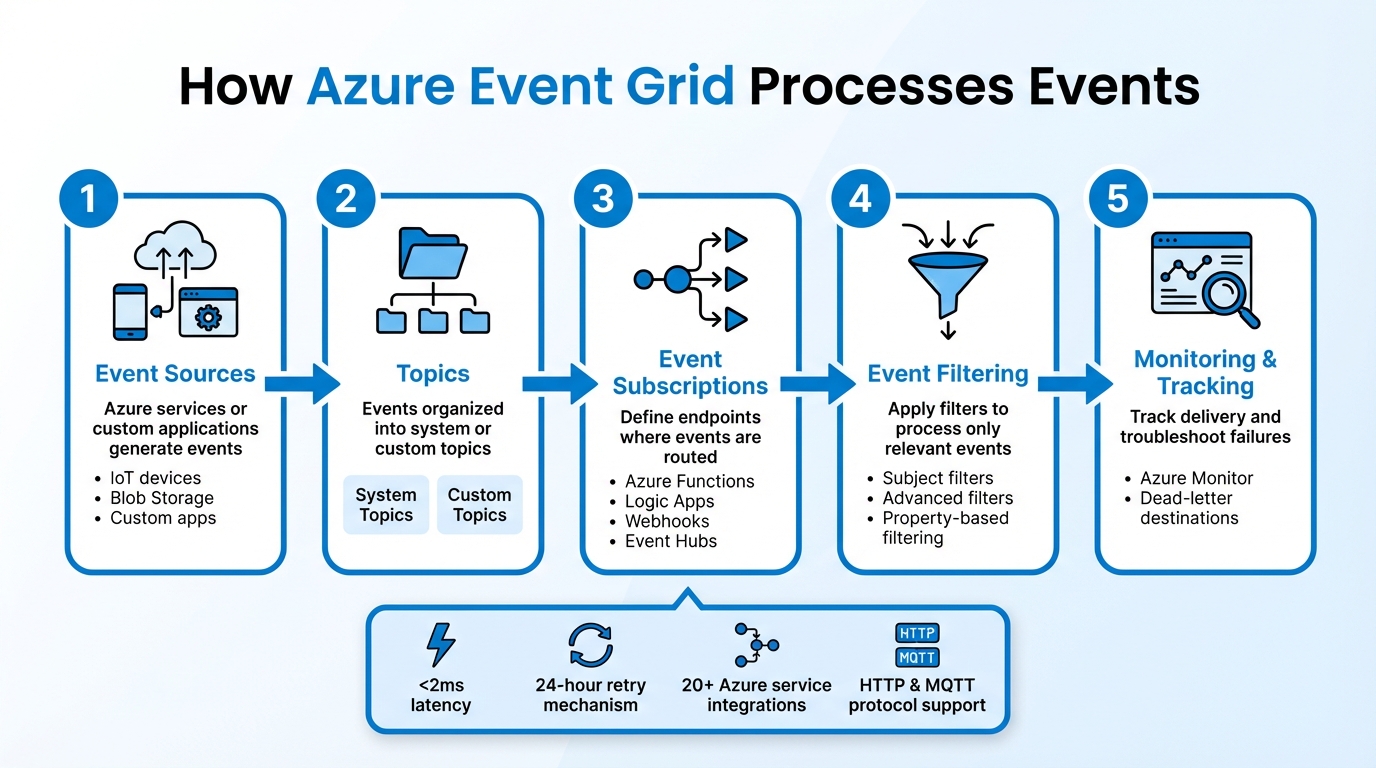
Azure Event Grid Event Processing Workflow: 5-Step Architecture
Mastering Azure Event Grid | Topics, Subscriptions, Publishers & Handlers Explained (Live Demo)
Setting Up Azure Event Grid for Real-Time Data Processing
Before you dive into using Azure Event Grid, you need to register the Microsoft.EventGrid provider in your Azure subscription. This step ensures your subscription can create and manage Event Grid resources. To check if it's already registered, run the following command:
az provider show --namespace Microsoft.EventGrid --query "registrationState"
If the status shows as unregistered, you can enable it with:
az provider register --namespace Microsoft.EventGrid
This is a one-time setup and is essential for provisioning Event Grid components.
Configuring Event Sources and Topics
Azure Event Grid organizes events through system topics and custom topics. System topics are automatically available for Azure services like Storage and Resource Groups, while custom topics allow you to publish events from your own applications or external systems.
If you're using Azure Storage as an event source, your storage account must be either StorageV2 (general purpose v2) or BlobStorage. Older General Purpose v1 accounts won’t work with Event Grid. For system topics, go to the storage account in the Azure Portal, select the "Events" tab, and create a subscription. The system topic will be created automatically. For custom topics, you’ll need to manually create one using the Azure CLI or Portal. Keep in mind that custom topic names must be regionally unique, between 3–50 characters, and can only include alphanumeric characters or hyphens.
For scenarios requiring high-scale messaging or pull delivery, consider using namespace topics. These are created within an Event Grid Namespace and support both push and pull delivery models, making them suitable for MQTT messaging or other high-volume needs. Choose your topic type based on how much data you’ll handle and how you plan to consume it.
Once topics are set up, you can create subscriptions to define where events should be routed.
Creating Event Subscriptions
After setting up your topic, the next step is creating an event subscription to specify the destination for your events. Common endpoints include Azure Functions, Logic Apps, Event Hubs, or custom webhooks. If you’re using a webhook, ensure you provide the full URL, including any required path suffixes like /api/updates.
For webhooks, Event Grid requires endpoint validation. When you create a subscription, it sends a SubscriptionValidationEvent containing a validationCode. Your endpoint must echo this code back to confirm ownership. If you’re using Azure Functions, the Event Grid Trigger automatically handles this validation, saving you from manual setup.
To fine-tune event delivery, apply filters. Subject filters let you target specific resources, such as a particular blob container. For more detailed control, use advanced filters to filter events based on properties like event type or metadata. For example, you can exclude CreateFile events to avoid processing zero-byte placeholder files in Data Lake Storage Gen2. This not only reduces unnecessary compute usage but also ensures your handlers focus on meaningful events.
For production, secure event delivery by assigning a managed identity to your Event Grid topic and granting it the "Event Grid Data Sender" role. This eliminates the need for credentials, enhancing security.
Testing and Validating Your Setup
Testing your setup is crucial to ensure your event-driven architecture works as intended. Start by deploying the Azure Event Grid Viewer web app. This prebuilt tool displays incoming events in real time, making it easier to verify routing without writing custom handler code.
To test system topics, trigger events by performing actions at the source. For example, upload a file to your Blob Storage container and check if the event appears in the viewer. For custom topics, you can use curl to send a JSON-formatted CloudEvent to the topic's HTTP endpoint. This lets you confirm both routing and filtering logic before connecting production systems.
Always configure a dead-letter destination, such as an Azure Storage container, to capture events that fail delivery after retries. Monitor metrics like Delivery Success Rate and Dead Lettered Events in Azure Monitor to catch any reliability issues early. If more than 1% of your events are dead-lettered, investigate your endpoint’s availability or response times. This testing process ensures your setup is reliable and efficient for real-time event handling.
Integrating Azure Event Grid with Other Azure Services
After setting up Azure Event Grid, you can expand its functionality by connecting it with other Azure services like Azure Functions, Logic Apps, and Data Factory. Each service processes events differently, so pick the one that aligns with your needs.
Using Azure Functions as Event Handlers
Azure Functions can handle Event Grid events through two methods: the Event Grid trigger (recommended) or the HTTP trigger (webhook). The Event Grid trigger simplifies endpoint validation, while the HTTP trigger requires manual validation. Opt for the Event Grid trigger unless your function is secured with Microsoft Entra ID, which necessitates the webhook approach.
Event Grid adjusts its delivery speed to match your function's capacity, minimizing errors during heavy loads. If you need higher throughput, enable batching in your subscriptions by configuring "Max events per batch" and "Preferred batch size in kilobytes" via the Azure portal, CLI, or PowerShell.
Be aware that support for the Azure Functions in-process model will end on November 10, 2026, and version 1.x of the runtime will no longer be supported after September 14, 2026. To ensure future compatibility, build workflows using the isolated worker model. Additionally, Functions can use output bindings to send events back to Event Grid custom topics, creating a seamless chain of event-driven components. This setup allows for fast, serverless responses to real-time events.
Connecting Event Grid with Azure Logic Apps
Azure Logic Apps lets you design complex workflows without the need for coding, offering over 1,400 prebuilt connectors, including GitHub, SQL Server, SAP, and Salesforce. When paired with an Event Grid trigger, Logic Apps automatically handles event subscription creation and validation.
Logic Apps are particularly effective for fan-out scenarios, where a single event can initiate multiple workflows. For example, one event could simultaneously update inventory and send customer notifications. By using advanced filters - like StringEndsWith for specific file extensions such as .jpg or .pdf - you can ensure that only relevant events trigger workflows, reducing unnecessary processing and costs.
For error handling, use "Try" and "Catch" scopes, and set "run-after" conditions to execute compensation logic if a workflow fails, skips, or times out. For tasks requiring heavy computation or intricate data transformations, delegate those processes to Azure Functions while using Logic Apps for orchestration. Since Event Grid guarantees at-least-once delivery, design workflows to handle potential duplicate events. This approach provides a flexible, no-code solution for managing real-time events.
Triggering Azure Data Factory Pipelines
Event Grid can also drive real-time data pipelines in Azure Data Factory (ADF). You can use two types of triggers for this integration: Storage Event Triggers and Custom Event Triggers. Storage Event Triggers fire pipelines when "Blob Created" or "Blob Deleted" events occur in Azure Data Lake Storage Gen2 or General Purpose v2 storage accounts. Custom Event Triggers allow ADF to subscribe to custom Event Grid topics, enabling integration with non-storage event sources.
Custom event payloads can be parsed and passed to pipeline parameters using the format @triggerBody().event.data._keyName_. ADF supports some of Event Grid's advanced filtering operators, such as NumberIn, StringBeginsWith, and BoolEquals, to ensure pipelines are triggered only when specific payload conditions are met. However, custom event triggers are limited to five advanced filters and 25 filter values across all filters per trigger.
Before setting up triggers, confirm that the Microsoft.EventGrid resource provider is registered in your subscription. You'll also need the Microsoft.EventGrid/eventSubscriptions/Write permission, which is included in the EventGrid EventSubscription Contributor role. Use the "Data Preview" feature in the ADF UI to validate your filters before publishing. Be cautious with parameterization - if a pipeline references a missing key in the event payload, the trigger will fail, and the pipeline won't run. This integration enables real-time, automated execution of data pipelines based on event triggers.
Monitoring and Optimizing Event Grid Workflows
Monitoring Event Delivery and Failures
Once you've set up and integrated Event Grid, it's crucial to monitor its performance to maintain reliability. Azure Monitor provides real-time insights into metrics like Delivery Failed Events, Published Events, and Dead Lettered Events. These metrics help you catch and address potential issues early.
To dig deeper, enable diagnostic settings to log DeliveryFailures, PublishFailures, and DataPlaneRequests. You can route these logs to tools like Log Analytics, Azure Storage, or Event Hubs for more detailed analysis. Keep in mind, though, that additional logging may increase costs.
As mentioned earlier, setting up a dead-letter destination is essential for capturing undelivered events. Event Grid retries event delivery up to 30 times using exponential backoff. If delivery still fails within 24 hours, the events are sent to the dead-letter destination. Additionally, if an endpoint repeatedly fails, Event Grid may suspend deliveries temporarily (a state called probation), with delays ranging from 10 seconds to 5 minutes depending on the error type. Setting up automated alerts for spikes in dead-lettered events can help you act quickly to resolve delivery problems.
Optimizing Event Filtering and Routing
Fine-tune your event filters based on observed delivery metrics to reduce unnecessary processing. For better efficiency, apply filters directly at the subscription level instead of handling them in your application code. When creating custom events, design a hierarchical subject structure (e.g., /building/floor/room) to make it easier for subscribers to filter events using the subjectBeginsWith operator.
Take advantage of advanced filtering for precise control over which events trigger workflows. Operators like NumberInRange, StringContains, and IsNullOrUndefined can evaluate the data field in event payloads. Dot notation (e.g., data.appEventTypeDetail.action) allows you to access nested properties. Note that each subscription supports up to 25 advanced filters and 25 filter values, with string values capped at 512 characters. Also, remember that events larger than 64 KB are billed in 64-KB increments, with a maximum event size limit of 1 MB.
Scaling Event-Driven Architectures
For workloads with high event volumes, the Standard tier is a good choice. It uses Throughput Units (TUs) to manage fixed capacity. You can also enable output batching to optimize HTTP performance by reducing the number of requests - each batch can include up to 5,000 events or 1,024 KB.
Scaling your consumers, such as Azure Kubernetes Service or Azure Functions, based on metrics like undelivered events and delivery attempt counts ensures they can handle increased loads. If your consumers are only available intermittently, consider pull delivery for better control over consumption rates.
To prevent cascading failures, use circuit breakers in consumer applications. These halt requests after repeated errors, giving systems time to recover. Deploying Event Grid in regions with availability zones adds automatic redundancy at the zone level, requiring no extra setup. Finally, keep an eye on your dead-letter queue. If its volume exceeds 1% of your total event volume, it may signal larger delivery issues that need immediate attention.
These strategies ensure your Event Grid workflows remain efficient and reliable, even in demanding scenarios.
Real-World Use Cases of Azure Event Grid
These examples show how Azure Event Grid's ability to handle real-time data makes it a powerful tool across different industries.
IoT Telemetry and Device Events
Azure Event Grid works with Azure IoT Hub to manage real-time device events like creation, deletion, connection updates, and telemetry - essential for industries such as manufacturing and healthcare. For example, when a device sends telemetry data to IoT Hub, Event Grid can route it to Azure Functions or Logic Apps to trigger actions like updating a database, creating a support ticket, or sending an alert. You can even filter events based on device ID (formatted as devices/{deviceId}) or specific message content, such as setting up alerts for temperature readings that exceed a threshold. To ensure proper filtering, configure message properties with contentType as application/json and contentEncoding as UTF-8.
Event Grid also features a built-in MQTT broker (supporting MQTT v3.1.1 and v5.0) for handling telemetry from large fleets of devices and enabling command-and-control communication. For edge scenarios, it connects on-premises manufacturing systems to the cloud, reporting connection state events at intervals of at least 60 seconds via Azure IoT Operations.
This same efficiency is applied to workflows in media processing.
Media Asset Processing
Event Grid simplifies media workflows by automatically routing "Blob Created" events from file uploads to Azure Functions or Logic Apps. You can use prefix and suffix filters to ensure only specific file types (like .mp4 or .mov) trigger the encoding process.
During processing, Event Grid tracks progress through various event types. For instance, JobStateChange events notify you when a job moves between states (e.g., from Queued to Processing), while JobOutputProgress events provide updates in roughly 5% increments. Once a job is complete, the JobFinished event is triggered, and if there’s a failure, the JobErrored event delivers diagnostic details. This architecture allows the upload interface to remain responsive while heavy processing tasks run asynchronously. For best results, use dedicated Event Grid triggers in Azure Functions and design your workflow to handle occasional duplicate event deliveries.
In financial services, Event Grid meets the demands of secure and real-time transaction processing.
Financial Transaction Processing
For applications managing sensitive financial data, Event Grid provides secure, real-time event handling. It uses Managed System Identity and Role-Based Access Control to send events to destinations like Service Bus or Event Hubs, eliminating the need to embed access keys in your code. For enhanced data protection, pull delivery over private links ensures traffic stays on Microsoft's backbone network. Push delivery, on the other hand, is ideal for immediate actions, such as fraud detection, while pull delivery allows for batch processing when systems aren’t always available.
To prevent data loss during temporary failures, Event Grid includes a 24-hour retry mechanism with exponential backoff. It also integrates with Azure Functions for fraud detection workflows and Azure Logic Apps for automating compliance processes. Advanced filtering ensures only relevant transaction types are processed, saving compute resources, and its support for the CloudEvents 1.0 standard ensures compatibility across different financial platforms. If you're using webhooks as event handlers, make sure your endpoint handles the SubscriptionValidationEvent to confirm ownership before events are delivered.
These examples highlight how Event Grid can seamlessly adapt to various enterprise needs, offering both flexibility and scalability.
Conclusion and Key Takeaways
Azure Event Grid offers a game-changing approach to real-time data processing by cutting out polling, reducing latency, and lowering costs. Its pub-sub model separates event publishers from subscribers, letting your team focus on application logic rather than infrastructure headaches. With support for over 20 Azure services and compliance with the CloudEvents 1.0 open standard, Event Grid provides a solid and flexible foundation for building event-driven systems.
Benefits of Using Azure Event Grid
Event Grid shines in delivering near-instant event processing, with round-trip latencies of under 2 milliseconds in availability zone-enabled regions. It’s versatile too, supporting MQTT (v3.1.1 and v5.0) for IoT applications and HTTP for web-based systems. The service includes a 24-hour retry mechanism with exponential backoff, ensuring reliable message delivery even during temporary downstream failures. Plus, its automatic scalability handles massive event loads effortlessly, triggering resources like Azure Functions only when needed - so you’re only paying for what you use.
Next Steps for Implementation
Ready to get started? Here are some actionable steps to make the most of Azure Event Grid:
- Start testing: Use the Azure portal quickstart to route Blob storage events to a web endpoint.
- Configure error handling: Set up dead-letter destinations to manage failed event deliveries.
- Implement filtering: Use advanced subscription-level filtering to process only the data you need.
- Secure authentication: Leverage Azure managed identities for secure communication between Event Grid and event handlers.
- Monitor performance: Use Azure Monitor diagnostic settings to keep an eye on delivery success rates.
These steps can be applied to real-world scenarios like IoT telemetry or media asset workflows, ensuring Event Grid becomes a key player in your event-driven architecture.
For more complex needs - whether it's custom architectures, AI-powered workflows, or integrating autonomous agents - NAITIVE AI Consulting Agency (https://naitive.cloud) can help you design, build, and manage advanced solutions that incorporate Event Grid with Azure services.
Finally, when deciding how to consume events, consider push delivery for immediate action or pull delivery for controlled processing. Remember, events larger than 64 KB are billed in 64-KB increments, with a maximum size limit of 1 MB.
FAQs
When should I choose push vs. pull delivery in Event Grid?
When deciding between delivery methods in Event Grid, go with push delivery if you need events to be sent automatically to your endpoint as they occur. This is ideal for real-time data processing. On the other hand, choose pull delivery if you want your application to fetch events only when needed. This option gives you more control over when and how you retrieve data. The best choice depends on whether your application prioritizes immediate updates or a more controlled approach to data handling.
How do I stop duplicate events from breaking my workflows?
To keep duplicate events from interfering with workflows in Azure Event Grid, you can configure your event subscription to include a unique event ID. For example, you can map the event's ID to the MessageId header in a Service Bus message. This setup allows the Service Bus queue to identify and discard duplicate messages effectively.
On top of that, make sure to build idempotency into your event processing logic. This way, even if duplicate events slip through, your workflows will stay accurate and consistent.
What’s the best way to secure Event Grid event delivery to my endpoint?
To make sure Event Grid events are delivered securely, you can use several methods: subscription validation, Azure Active Directory (Azure AD) authentication, shared secret verification, and managed identities. These approaches work together to authenticate and safeguard your endpoints, ensuring that events are both protected and reliably delivered.